Use the 777E entry in your main mobile browser. Open Download now in the top bar.
Pick the route for your device
- Android Speed APP
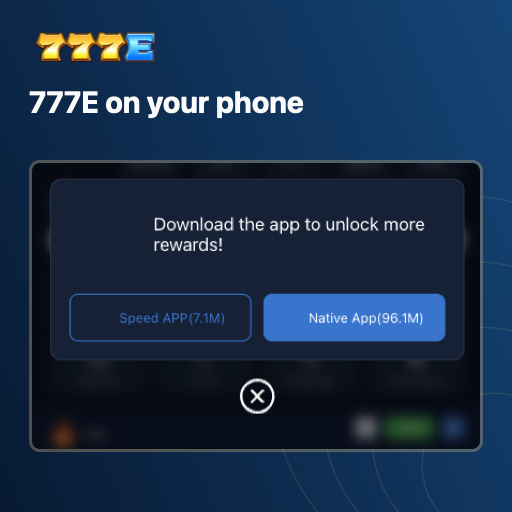
- Version 1.1.80, 7.09 MB. The lobby rounds the size to 7.1 MB. Open Download now at the top of 777E and choose Speed APP.
- Android Native App
- The lobby may also show a Native App option. Check the label and size shown on your device if you choose it.
- iPhone Quick APP
- Version 1.1.80, 5.83 MB in the supplied app listing. On iPhone, Download now also shows Desktop shortcut and a Tutorial beside Quick APP.
- iPhone Home Screen shortcut
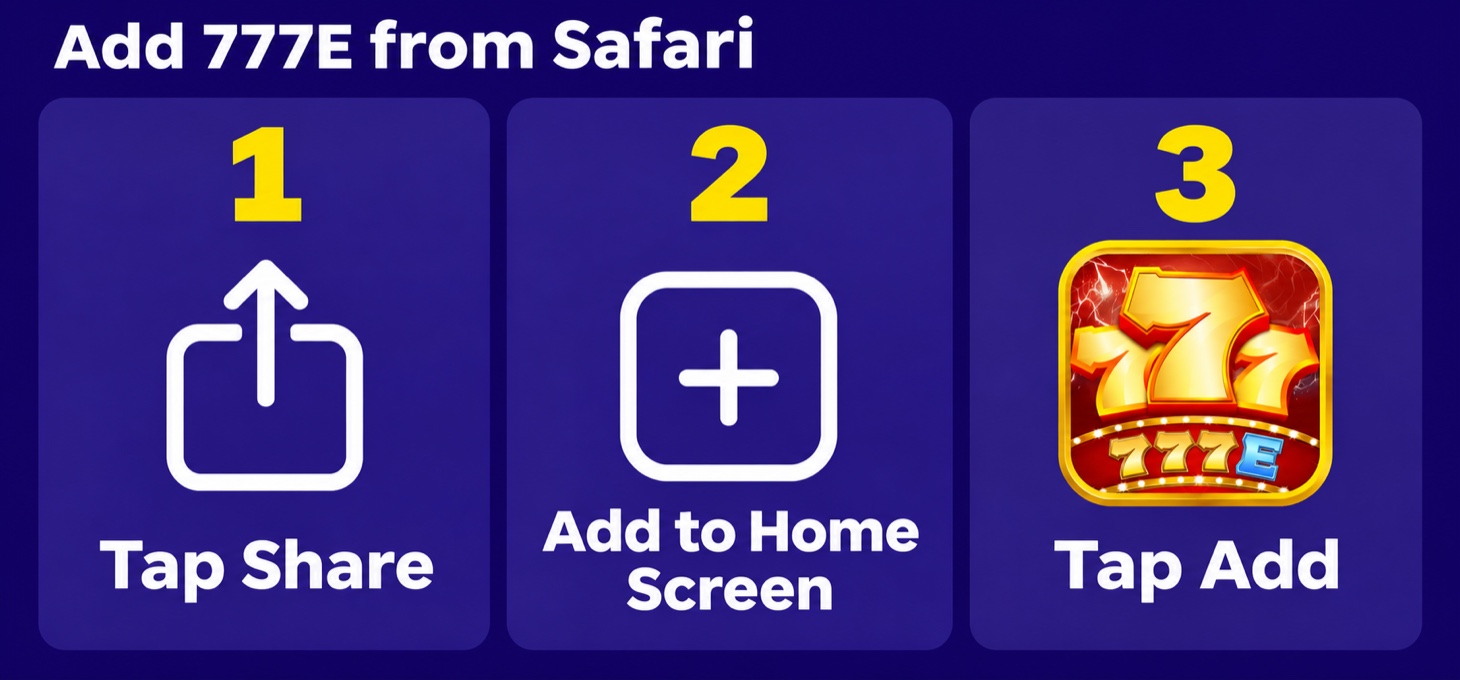
- Open 777E in Safari, tap Share, choose Add to Home Screen, then tap Add. You can keep using Safari without adding a shortcut.
The download menu shows the options available on your phone. The iPhone Home Screen shortcut uses the website.
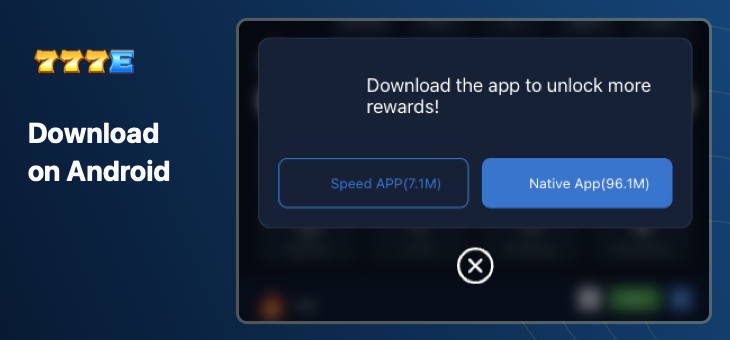
Android download and iPhone shortcut
Choose Speed APP and open your browser’s Downloads to find the APK. If you are updating the app, check the version shown in Download now first.
In Safari use Share → Add to Home Screen → Add. If offered, you can enable Open as Web App. For Quick APP, check the Tutorial in the 777E menu.
Open the app or shortcut and use your registered +92 phone number. You can choose a password or a code in Login.
iPhone shortcut and common download fixes
After adding the icon, tap it to open 777E. If the icon does not appear, open the lobby directly in Safari and try adding the shortcut again.
- If you opened the link from a chat or social app on iPhone, open the same page in Safari before adding it to the Home Screen.
- If Add to Home Screen is missing, look for it under Edit Actions in the Share menu.
- On Android, check your browser’s Downloads list and available storage before starting the same download again.
- If the app does not open after updating, tell Support your phone model, the option you chose and the exact error.
Updating or changing phones
Go back to Download now for the current options. Have access to the number or other recovery contact used by your existing account.